Google Advertiser Verification: Complete Step-by-Step Guide (2025 Updated)
Google Advertiser Verification: Complete Step-by-Step Guide (2025 Updated)
If you run ads on Google, you’ve probably seen the prompt asking you to complete Advertiser Verification. Many businesses face confusion or delays completing it, often because they don’t understand what Google is asking for.
In this guide, we’ll walk you through the entire verification process, explain what each step means, and share pro tips to ensure a smooth approval – based on the latest 2025 Google Ads dashboard updates.
What Is Google Advertiser Verification?
Google Advertiser Verification is part of Google’s transparency initiative. It ensures that every advertiser is a legitimate, accountable business entity. Once verified, your ads will display “About this advertiser” information such as:
- Advertiser name
- Business location
- Who paid for the ad
This helps users trust your ads more and allows Google to maintain a safer ad ecosystem.
Why Advertiser Verification Is Important
Without completing advertiser verification:
- Your ads may stop running.
- You’ll lose eligibility to advertise certain categories.
- You may miss verification deadlines, which can lead to account pauses.
Completing the verification builds trust, improves compliance, and ensures your ads appear transparently.
Step-by-Step Guide to Complete Google Advertiser Verification
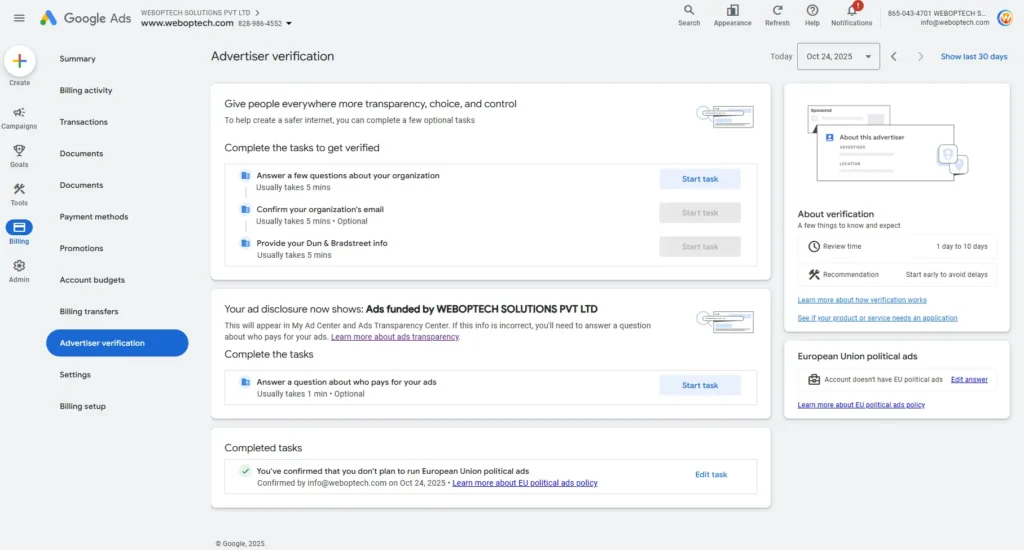
The attached dashboard (shown above) displays the four main sections Google uses to verify your advertiser identity.
1. Answer a Few Questions About Your Organization
- Time required: ~5 minutes
- This is the first task you’ll see. Google asks basic questions to determine your business type and advertising purpose.
- You’ll need to select whether you’re:
- An individual or organization
- Running ads on behalf of your own business or a client
- Make sure your responses match your business documents exactly (company name, registration number, etc.).
✅ Tip: Use your legal business name as registered with MCA or other government entities-avoid using brand nicknames.
2. Confirm Your Organization’s Email (Optional but Recommended)
- Time required: ~5 minutes
- This step helps Google verify that your domain and organization email (e.g., info@yourbusiness.com) are valid.
- Verification usually happens via an email link sent to your registered business domain.
✅ Tip: Use your official business domain email, not Gmail or Yahoo IDs. Example: info@weboptech.com.
3. Provide Your Dun & Bradstreet (D-U-N-S) Information
- Time required: ~5 minutes
- This is optional, but adds credibility.
- D-U-N-S is a global business identifier that helps Google verify your company’s legitimacy.
- If you don’t have one, you can still proceed – but adding it can speed up verification and boost trust.
✅ Tip: If your business operates internationally, get a free D-U-N-S number from Dun & Bradstreet’s official website.
4. Ad Disclosure: Who Pays for Your Ads
- Your ad disclosure section shows:
“Ads funded by [Your Business Name]”
- You’ll be asked to confirm who funds your ads—usually your company (e.g., “Ads funded by WEBOPTECH SOLUTIONS PVT LTD”).
- If you’re an agency managing client ads, you must disclose your client’s legal entity name instead.
✅ Tip: Ensure that the “funded by” name matches your billing and payment info in Google Ads.
Completed Tasks Section
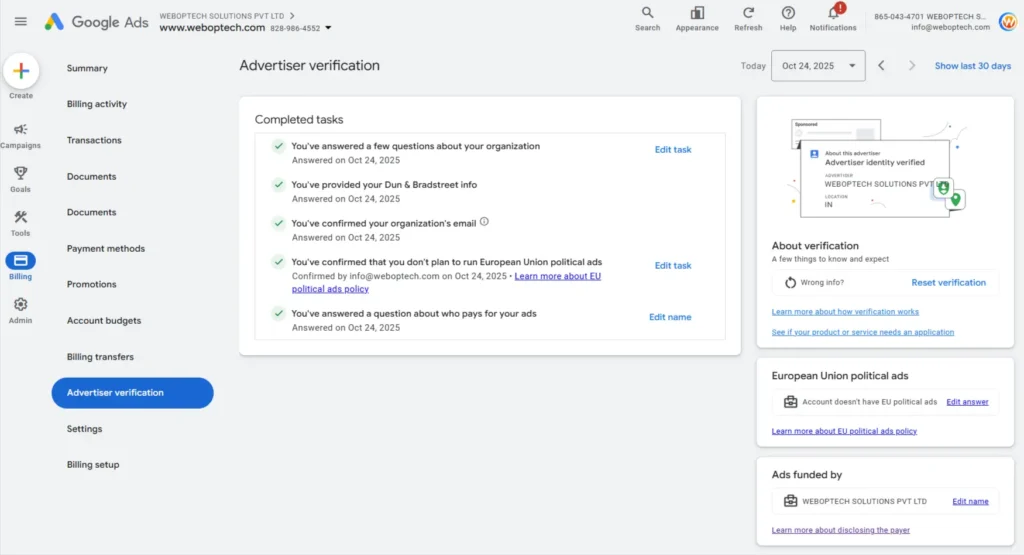
Once you finish each step, you’ll see a “Completed tasks” section at the bottom (like in the screenshot).
For example:
✅ Confirmed that you don’t plan to run European Union political ads.
If any section shows as Incomplete, click “Start Task” again and verify your answers.
Review Time and What to Expect
After submitting your details, Google typically reviews everything within 1 to 10 days.
During this time:
- You can continue running existing ads (unless Google requires verification before continuing).
- You’ll get email notifications once verification is complete or if additional info is needed.
Common Reasons for Verification Delays
- Business name mismatch between documents and ad account.
- Using a personal email instead of an organization domain.
- Incomplete organization details or missing payment info.
- Providing brand name instead of legal company name.
✅ Pro Tip: Always double-check that your Google Ads billing profile, domain registration, and business certificate use the same name and address.
Final Checklist Before Submitting Advertiser Verification
| Step | Task | Stats |
| 1 | Answer organization questions | ✅ |
| 2 | Confirm email domain | ✅ |
| 3 | Provide D-U-N-S info (optional) | ✅ |
| 4 | Confirm ad funding disclosure | ✅ |
| 5 | Confirm EU political ads status | ✅ |
Once all show as completed, your advertiser profile is fully verified!
💡 Key Takeaways
- Verification builds credibility and compliance.
- Always use your registered business name and domain-based email.
- Start early – it may take up to 10 business days.
- Keep your business details consistent across all Google services.
Example: WEBOPTECH SOLUTIONS PVT LTD
In the example shown in the screenshot, the advertiser disclosure reads:
“Ads funded by WEBOPTECH SOLUTIONS PVT LTD”
This means all ads from that account will transparently display the verified business name in Google’s Ads Transparency Center.
Conclusion
Completing Google Advertiser Verification may seem technical, but it’s actually a simple 4-step process once you understand what’s required.
By following this guide, you can complete the verification confidently – without unnecessary confusion or delays.
If you’re still unsure or facing verification issues, our team at WebOpTech can help you get verified quickly and correctly.
👉 Contact WebOpTech for expert help with Google Ads setup, domain verification, and ad compliance.